Orbit's membership feature lets you create membership tiers that your community can join. Whether you offer a single free tier, multiple paid plans with selectable pricing, or an application-based process, membership integrates across your entire Orbit setup — from events and courses to resources and communications.
Key Capabilities
- Flexible pricing — free, monthly, annual, one-time, or custom "Contact Us" tiers, all within a single membership level. See Pricing & Tiers for details.
- Multiple ways to join — self-service purchase, free sign-up, application-based, or staff invitations with optional discounts. See Applications and Invitations for details.
- Guest checkout — visitors can purchase or join memberships without creating an account first. Accounts are created automatically on purchase or sign-up.
- Integration across Orbit — gate events, courses, and resources to members only, and offer member-only pricing.
Membership Levels
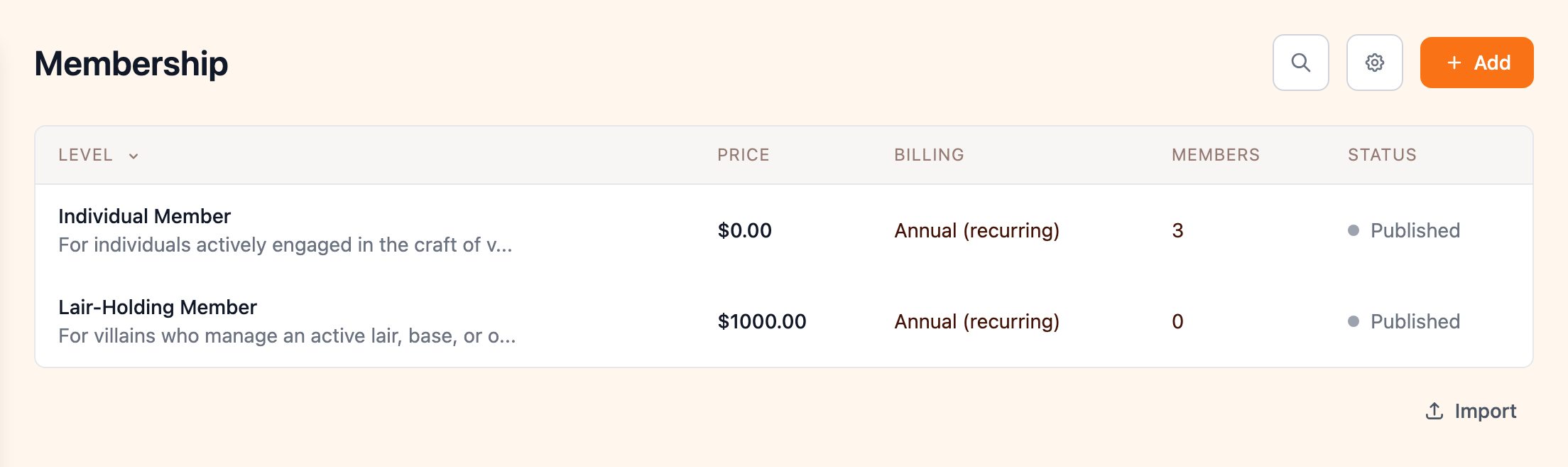
You can create one or more membership levels, each with its own name, description, benefits, pricing, and featured image. Levels are managed from the admin portal under Membership > Membership Levels.
Benefits
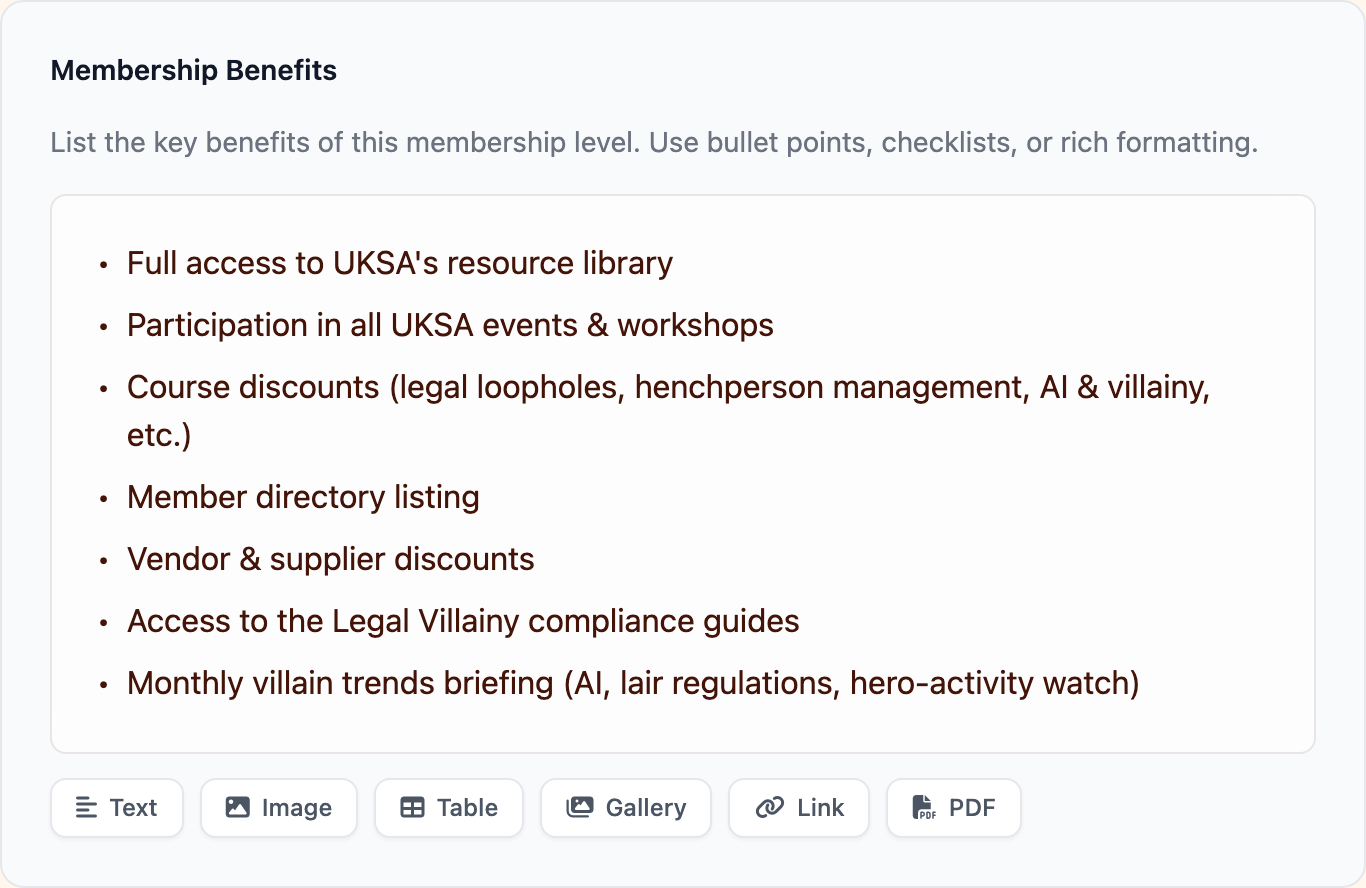
Each level has a dedicated benefits section where you can list what's included — whether that's access to exclusive content, event discounts, directory listing, or anything else your organization offers. Benefits are displayed on the public membership page alongside pricing.
Managing Members
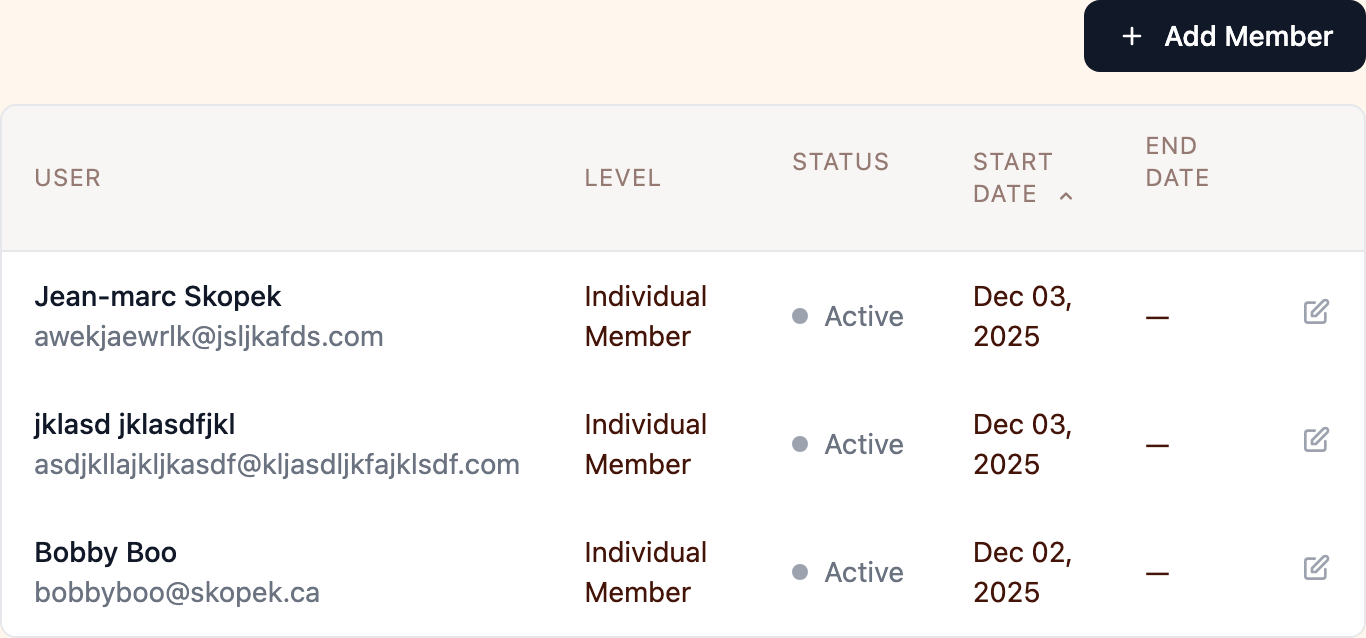
Each membership level has a Members tab in the admin portal showing all assigned members with their status, dates, and quick edit actions. From here you can:
- View member details
- Change a member's status, level, or dates
- Remove a membership
Adding Members Manually
You can add members directly from the admin portal. Navigate to a membership level, open the Members tab, and click Add Member. You can set their status, start date, and expiration date.
Importing Member Lists
For bulk onboarding, you can import members via CSV. The import system matches users by email address and membership levels by name. Export your existing data first to see the required format.
Shared Memberships
Membership levels can be configured to allow multiple members under a single membership. This is useful for family plans, team memberships, or any scenario where one person purchases a membership that covers others.
Setting Up Shared Memberships
In the admin portal, open a membership level and navigate to the Pricing & Access tab. Toggle the Additional Members setting from Solo to Shared. You can optionally set a seat limit — leave it blank for unlimited additional members.
How It Works
- The person who purchases the membership is the owner. They can invite additional members by email from their membership management page.
- If the invited person already has an account, they are added immediately. If not, an invitation email is sent with a link to join.
- Pending invitations count toward the seat limit, so an owner cannot over-invite beyond the available seats.
- The owner can remove members or cancel pending invitations at any time.
Use Cases
Shared memberships are a great fit for family or household memberships, where one person signs up and adds family members. They also work well for organizational or corporate memberships, where a company purchases a membership that covers multiple employees.
Admin View
Admins can view and manage all members of a shared membership from the membership modal in the admin portal. The member list shows active members and pending invitations together, with a Pending badge for invitations that haven't been accepted yet.
Grace Periods
You can configure a grace period on any membership level to give members a window after expiration to renew before losing access. This is useful for organizations that want to avoid abruptly cutting off members who are a few days late on renewal.
Setting Up Grace Periods
In the admin portal, open a membership level and set the Grace period days field. For example, setting it to 14 gives members two weeks after their expiration date to renew while keeping access to member benefits.
How It Works
- During the grace period, the membership status shows as Expired but access to member-gated content (events, courses, resources) continues.
- If the member renews during the grace period, their new term starts from the original expiration date — not the renewal date. This means grace days are a courtesy window, not bonus time.
- If the member does not renew before the grace period ends, access is revoked.
- Automated expiration emails are still sent on the expiration date, giving members a prompt to renew.
Membership Status
Each membership has one of four statuses:
- Active — the membership is current and valid
- Pending — awaiting payment or activation
- Expired — the membership period has ended
- Cancelled — the membership was cancelled
For recurring memberships, status transitions happen automatically based on Stripe webhook events — renewals extend the membership, cancellations update the status, and failed payments set it to pending.
Integrations with Other Features
Membership connects to several other parts of Orbit:
| Feature | What you can do |
|---|---|
| Events | Restrict events to members only; offer member-discounted pricing at checkout |
| Courses | Restrict enrollment to members only; set a member price for paid courses |
| Resources | Gate files, videos, and documents so only active members can access them |
| Communications | Send targeted newsletters and announcements by membership level; send personalized invitations with optional discounts |
Automated Emails
Orbit automatically sends emails at key moments in the membership lifecycle:
| When it's sent | |
|---|---|
| Membership activated | When a new membership is activated |
| Expiring in 90 days | 90 days before the membership expires |
| Expiring in 30 days | 30 days before expiration |
| Expiring in 7 days | 7 days before expiration |
| Membership expired | On the day the membership expires |
Email templates can be customized from the mailer settings.
Billing and Payments
For paid memberships, all billing is handled through Stripe:
- Members can access the Stripe billing portal to update their payment method, view invoices, or cancel
- Subscription renewals, cancellations, and payment failures are processed automatically via webhooks
- Revenue and payment history are tracked in the admin portal
Sharing, Embedding, and Analytics
Membership levels can be shared via email, social media, or embedded on external websites. Built-in analytics track page views, signup trends, and engagement. See Sharing & Promotion and Per-Feature Analytics for details.
Publishing Workflow
Membership levels follow Orbit's standard draft/publish/archive workflow. When archived, existing members retain their membership. See Publishing Workflow for details.
Coming Soon
- Directory integration — gate access to the member directory so only active members can create and maintain their listing