Orbit's resource library lets you serve a content library to your users — uploaded files, links, and videos — all organized, searchable, and optionally restricted to members.
Resource Types
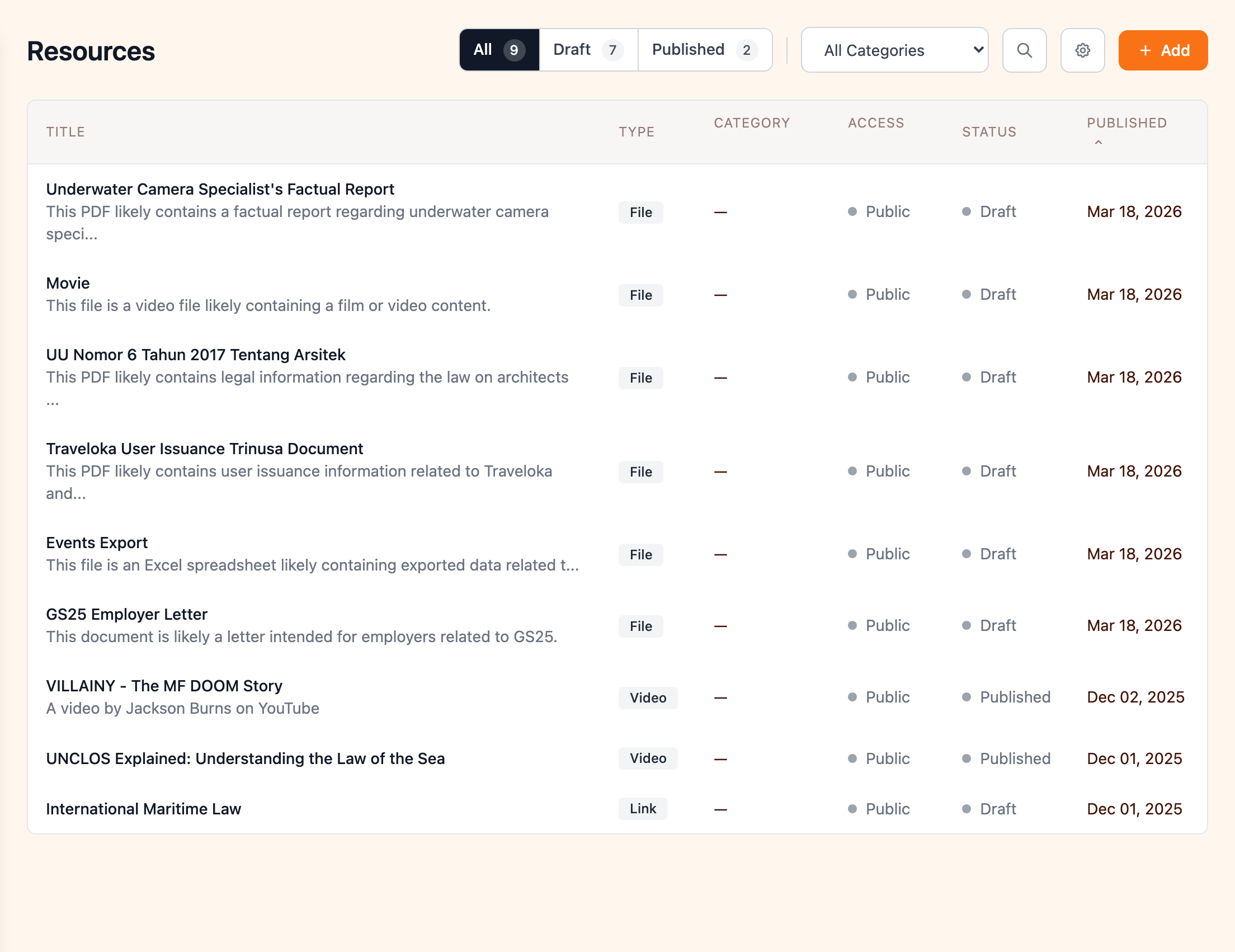
Resources come in three types, automatically detected based on what you provide. See Supported Types for detailed information on each type.
- Files — upload PDFs, documents, spreadsheets, images, and more
- Videos — embed YouTube, Vimeo, and 300+ other video providers
- Links — curate external URLs with auto-generated previews
Looking for interactive web applications? See Tools — a dedicated feature for embedding apps with membership integration, per-user data storage, and more.
AI-Powered Content Generation
When you create a resource, Orbit can automatically generate a title, description, and featured image by analyzing the content — no manual data entry required. This is enabled by default and can be disabled per-resource.
How It Works
- For uploaded files — the file is analyzed using AI to generate a professional title and markdown-formatted description. This works with PDFs, Word documents, spreadsheets, presentations, and many other file types.
- For videos — metadata is pulled from the video platform (title, author, thumbnail) to populate the resource details.
- For links — the linked page is visited and analyzed to generate a description based on the page content.
Featured Image
A featured image is also automatically fetched:
- Videos — the platform's native thumbnail
- Links — the page's Open Graph image, Twitter card image, or a screenshot of the page
- Files — a rendered thumbnail of the first page (for supported document types like PDFs and Office files)
You can always replace the auto-generated content with your own. You can also upload a custom image, choose a gradient placeholder, generate an image with AI, or search Unsplash.
Categories
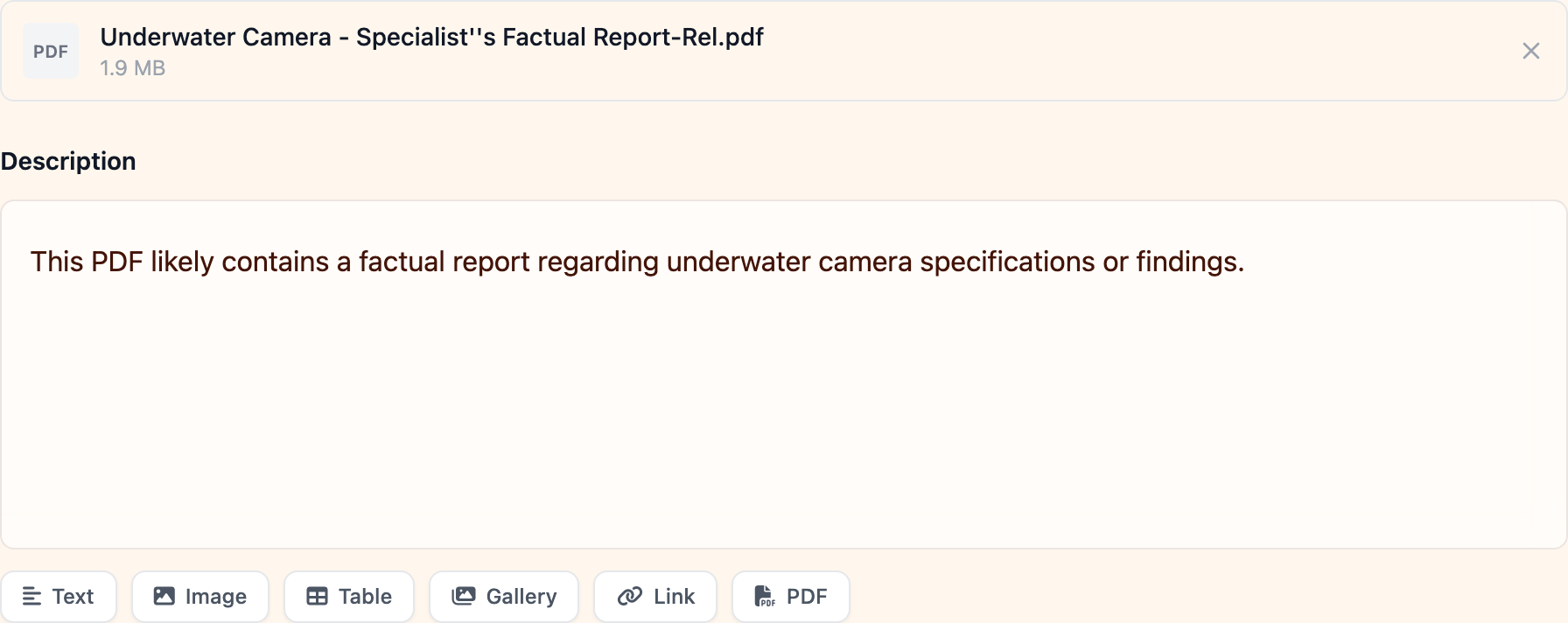
Resources can be organized with categories. Categories are flexible text labels — you define your own as you go, and Orbit suggests existing categories as you type.
Categories appear as labels on each resource card in the library and can be used to filter the resource list. Users can combine category filtering with search and resource type filters to find what they need.
Access Control and Pricing
All resources require registration to access — even free ones. This gives you a record of who's accessing your content and lets you send confirmation emails with access links.
Access Levels
Each resource can be set to one of two access levels:
- Public — visible in the library to everyone, registration open to all visitors
- Members only — only users with an active membership can register and access the resource. Non-members see a lock icon and a prompt to join.
Access levels can be toggled from the Access & Pricing tab in the resource editor. When set to members only, the resource still appears in the library (so non-members can see what's available) but access is gated behind membership.
Pricing
Resources can be free or paid:
- Free — users register and get immediate access
- Paid — users complete a Stripe checkout before gaining access
For paid resources, you can optionally set a member price — a discounted rate for users with an active membership. The resource detail page automatically shows the correct price based on the visitor's membership status, along with the savings amount.
Registration
When a user registers for a resource (or completes payment for a paid one), a ResourceRegistration record is created and a confirmation email is sent automatically. The registration tracks the user's name, email, and organization.
Staff can also manually add registrations from the Registrations tab in the resource editor.
Guest registration is supported — visitors who aren't logged in can register with their name and email. If the resource is paid, they complete checkout as a guest. Bot protection (Cloudflare Turnstile) is applied to guest registration forms.
Admin Configuration
The resource editor includes two dedicated tabs for access management:
- Access & Pricing — set the category, visibility (public or members only), and pricing (free or paid with optional member discount)
- Registrations — view, add, edit, and delete registrations, with export support
Importing Resources
Spreadsheet Import
Import resources from a CSV or Excel file. Export your existing resources first to see the required format. This is useful for bulk-importing links and video URLs from an existing content library.
URL Import
Paste a link to a page containing resources and Orbit will extract the details using AI, creating resources from the page content.
Bulk File Upload
Upload multiple files at once to quickly populate your resource library. Each file is created as a separate resource, and AI content generation runs on each to auto-populate titles and descriptions.
Search and Filtering
The resource library provides users with several ways to find content:
- Search — full-text search across resource names, descriptions, and categories
- Resource type filter — filter by files, links, or videos
- Category filter — filter by any of your defined categories
Filters can be combined and update the page instantly via HTMX without a full page reload.
Sharing and Promotion
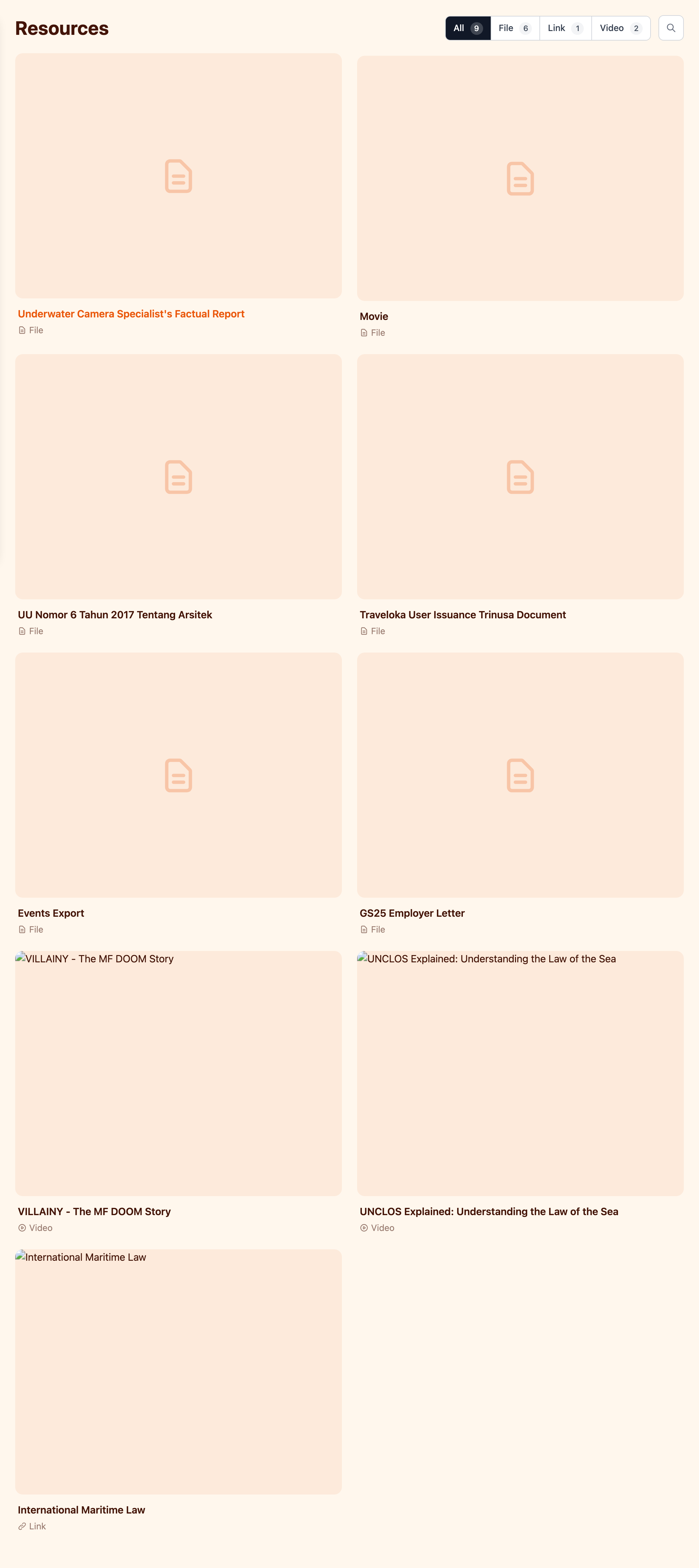
Resources can be shared via email, social media, or embedded on your website — both individually and as a full searchable library. See Sharing & Promotion for details.
Analytics
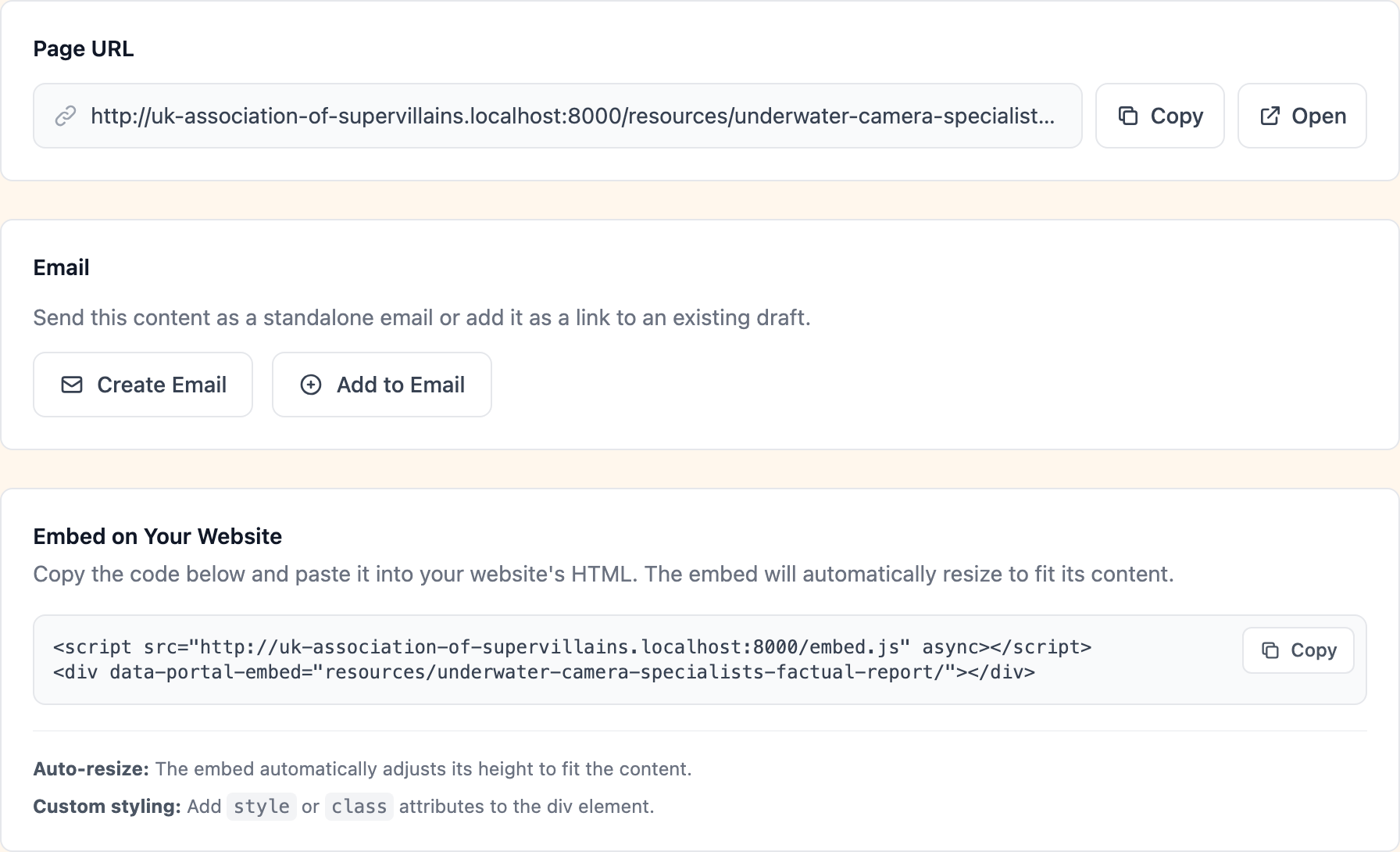
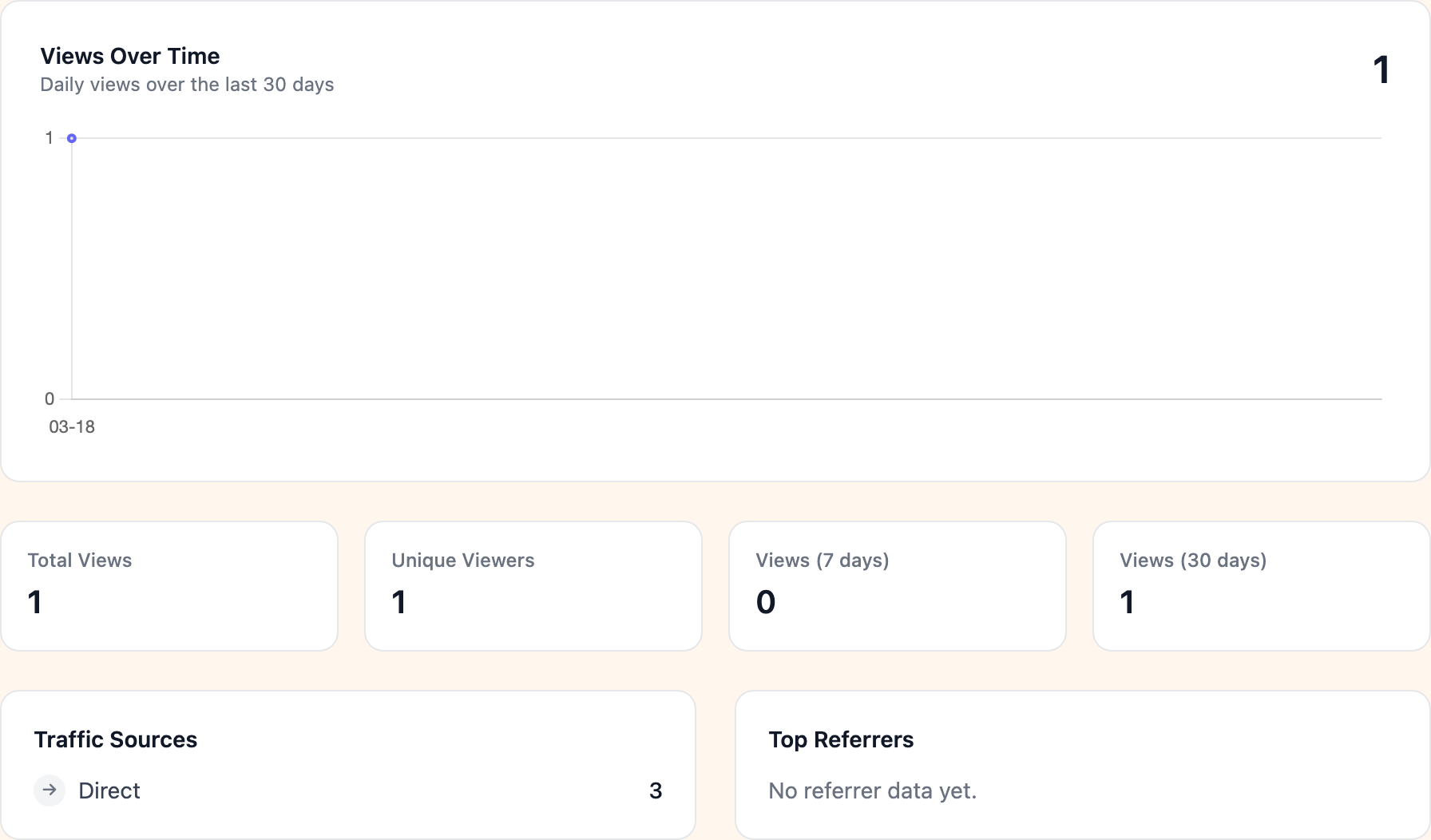
Built-in analytics track views, traffic sources, and engagement for each resource. See Per-Feature Analytics for details.
Publishing Workflow
Resources follow Orbit's standard draft/publish/archive workflow. See Publishing Workflow for details.
User Portal
Users see resource information in their portal dashboard:
- Resources summary widget — shows counts of available public and member resources
- Resource highlights widget — displays the latest public resources and, for members, the latest member-only resources